
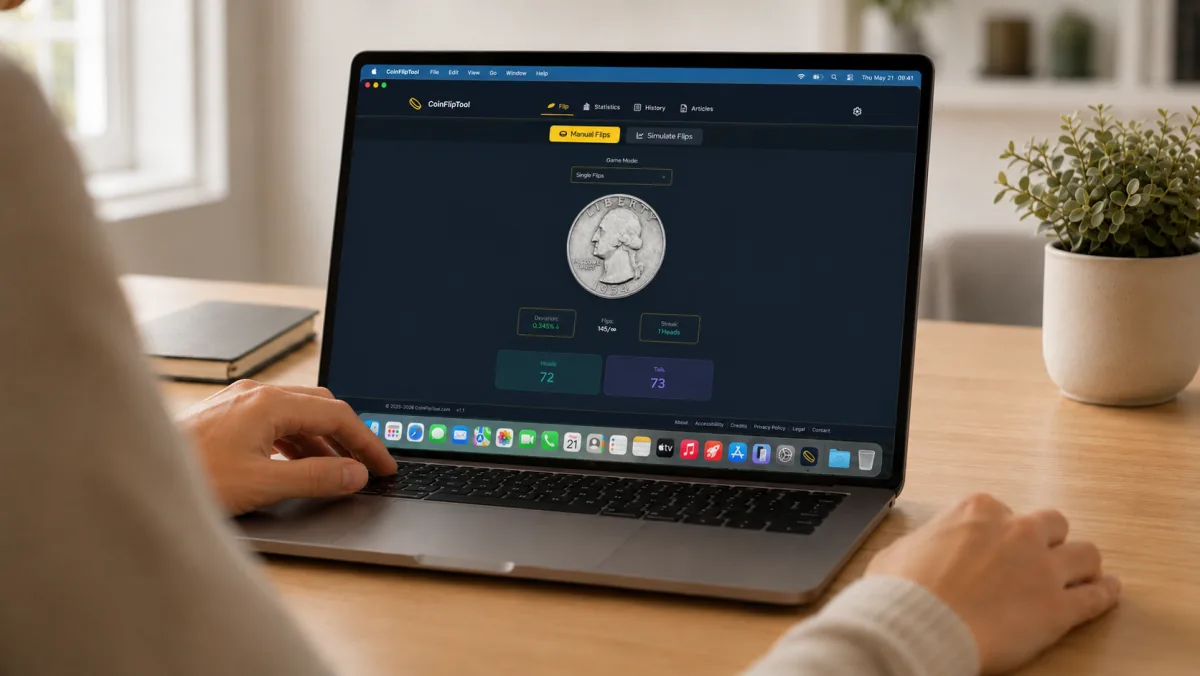
Why install on desktop?
- Faster launch from Dock, Start Menu, or application launcher
- Dedicated window separate from your browser
- System integration in app switcher and taskbar or Dock
- App-style experience separate from your regular browser tabs
Tip: Once installed, CoinFlipTool opens in its own app-style window with its own Dock, taskbar, or launcher icon, so it feels separate from your regular browser tabs.
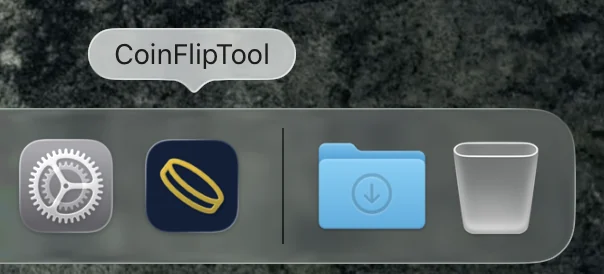
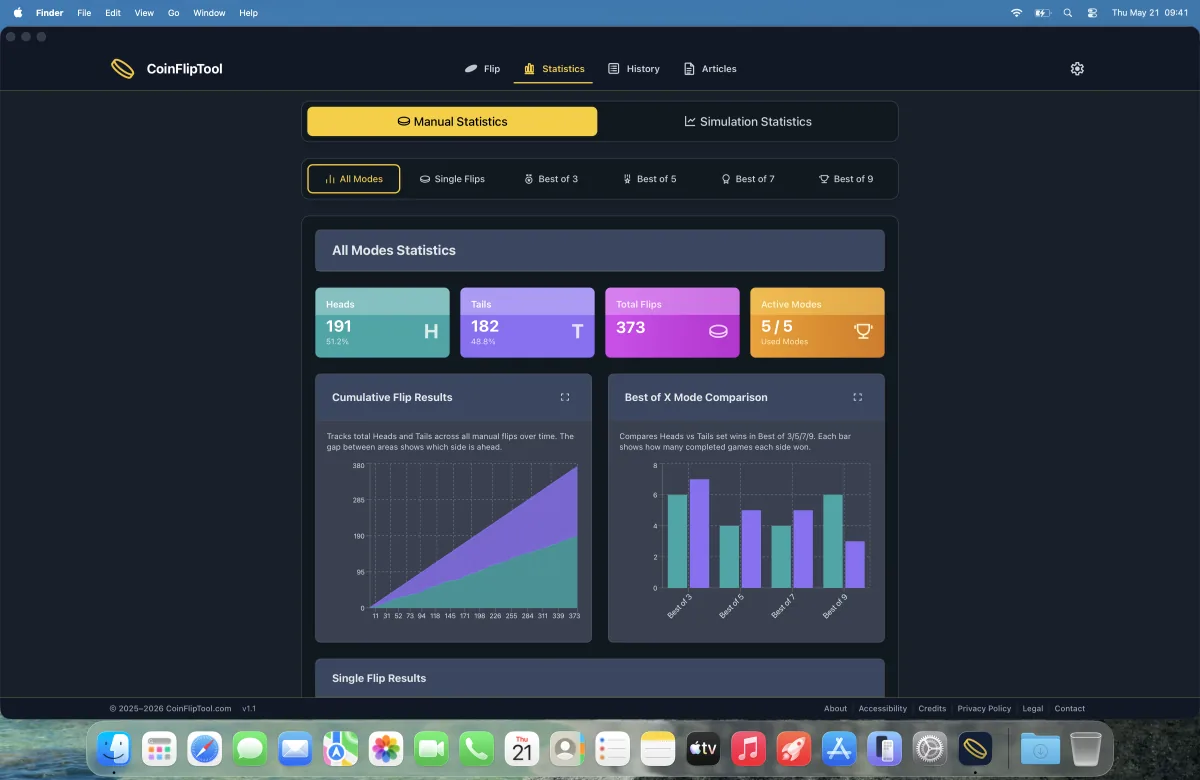
The screenshots below use macOS as the visual example, but the desktop app experience is similar on Windows and Linux: CoinFlipTool opens in its own app-style window and can be launched from your Dock, Start Menu, taskbar, or application launcher depending on your system.
Use CoinFlipTool at the size that fits your screen
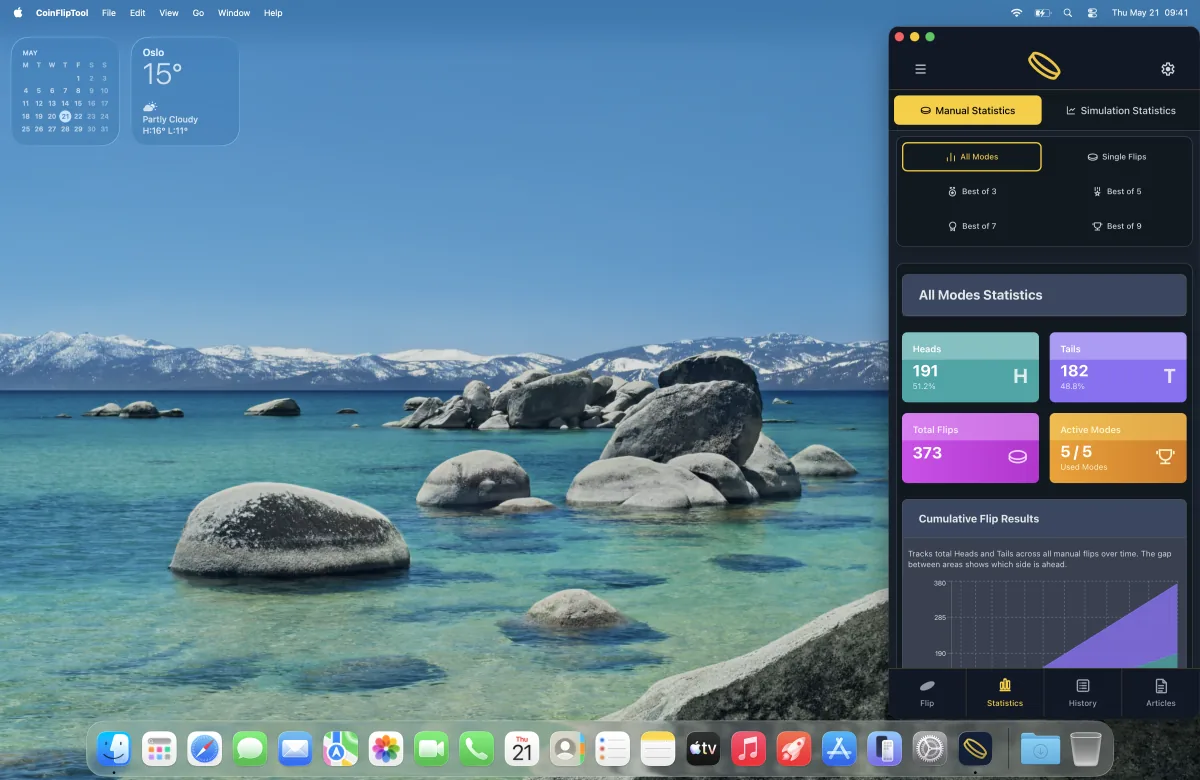
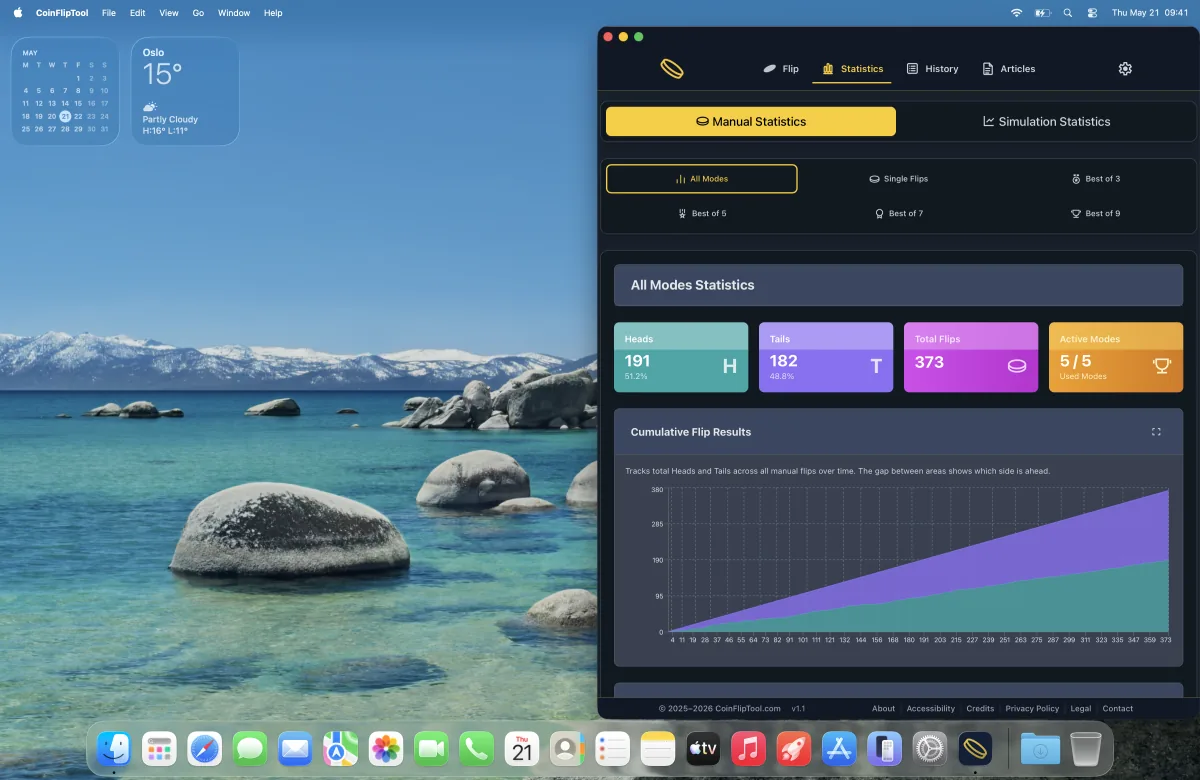
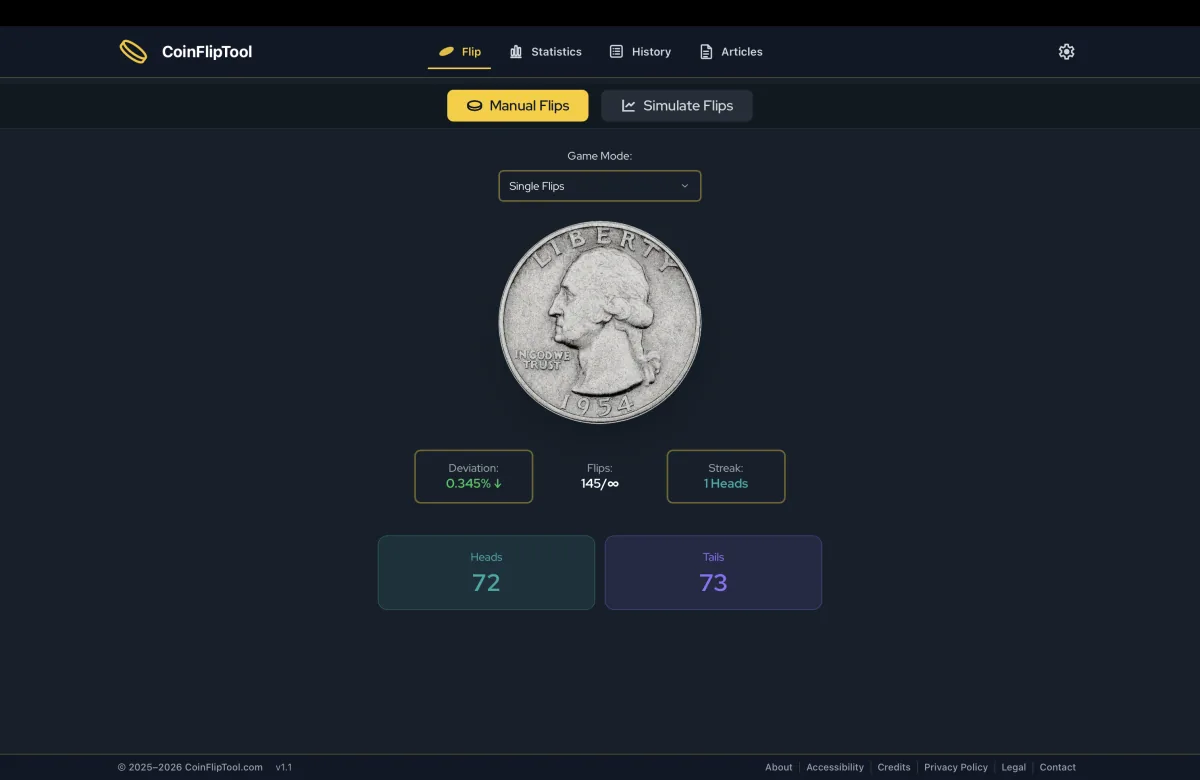
Once installed, CoinFlipTool can be resized like a regular desktop app. You can keep it narrow beside other windows, use a wider layout for charts and history, expand it when you want the full desktop view, or switch to fullscreen for a more immersive app experience.
macOS
Google Chrome (recommended)
- Open Chrome and go to coinfliptool.com
- If an Install icon appears in the address bar, click it
- If you do not see the icon, click the three dots menu -> Cast, save, and share -> Install page as app
- Follow the on-screen instructions to install CoinFlipTool
- Open CoinFlipTool from Launchpad, Spotlight, or Chrome apps
- Keep it in the Dock if desired after launching it
Safari
- Make sure you are using macOS Sonoma 14 or later
- Open Safari and go to coinfliptool.com
- Click File in the menu bar -> Add to Dock
- Alternatively, click the Share button in the Safari toolbar -> Add to Dock
- Customize the name if desired (default: CoinFlipTool)
- Click Add
- Launch CoinFlipTool from the Dock, Spotlight, or your Applications folder
Microsoft Edge
- Open Microsoft Edge and go to coinfliptool.com
- Click the three dots menu -> More tools -> Apps -> Install this site as an app
- Enter a name for the app if prompted (default: CoinFlipTool)
- Click Install
- Open CoinFlipTool from Microsoft Edge apps, Launchpad, or Spotlight
- Keep it in the Dock if desired after launching it
Firefox
Firefox does not currently support this desktop web app installation flow on macOS. Use Safari, Google Chrome, or Microsoft Edge instead.
Windows
Google Chrome (recommended)
- Open Chrome and go to coinfliptool.com
- If an Install icon appears in the address bar, click it
- If you do not see the icon, click the three dots menu -> Cast, save, and share -> Install page as app
- Follow the on-screen instructions to install CoinFlipTool
- Find CoinFlipTool from the Start Menu or Windows search
- Pin it to the taskbar if desired
Microsoft Edge
- Open Microsoft Edge and go to coinfliptool.com
- Click the three dots menu -> More tools -> Apps -> Install this site as an app
- Enter a name for the app if prompted (default: CoinFlipTool)
- Click Install
- Find CoinFlipTool from the Start Menu or Microsoft Edge apps
- Pin it to Start or the taskbar if desired
Firefox
- Make sure you are using Firefox for Windows version 143 or later
- If Firefox was installed from the Microsoft Store, version 150 or later may be required
- Open Firefox and go to coinfliptool.com
- Click the web apps button in the address bar if it appears
- Follow the prompt to add CoinFlipTool as a web app or shortcut
- Pin it to the taskbar if prompted or from the Start Menu if desired
Linux
Google Chrome/Chromium (recommended)
- Open Chrome or Chromium and go to coinfliptool.com
- If an Install icon appears in the address bar, click it
- If you do not see the icon, open the browser menu and choose Install page as app or a similar install option
- Follow the on-screen instructions to install CoinFlipTool
- Find CoinFlipTool in your application launcher or app search
- Add it to your favorites, dock, or panel if your desktop environment supports it
Firefox
Firefox does not currently support this desktop web app installation flow on Linux. Use Google Chrome, Chromium, or another Chromium-based browser instead.