
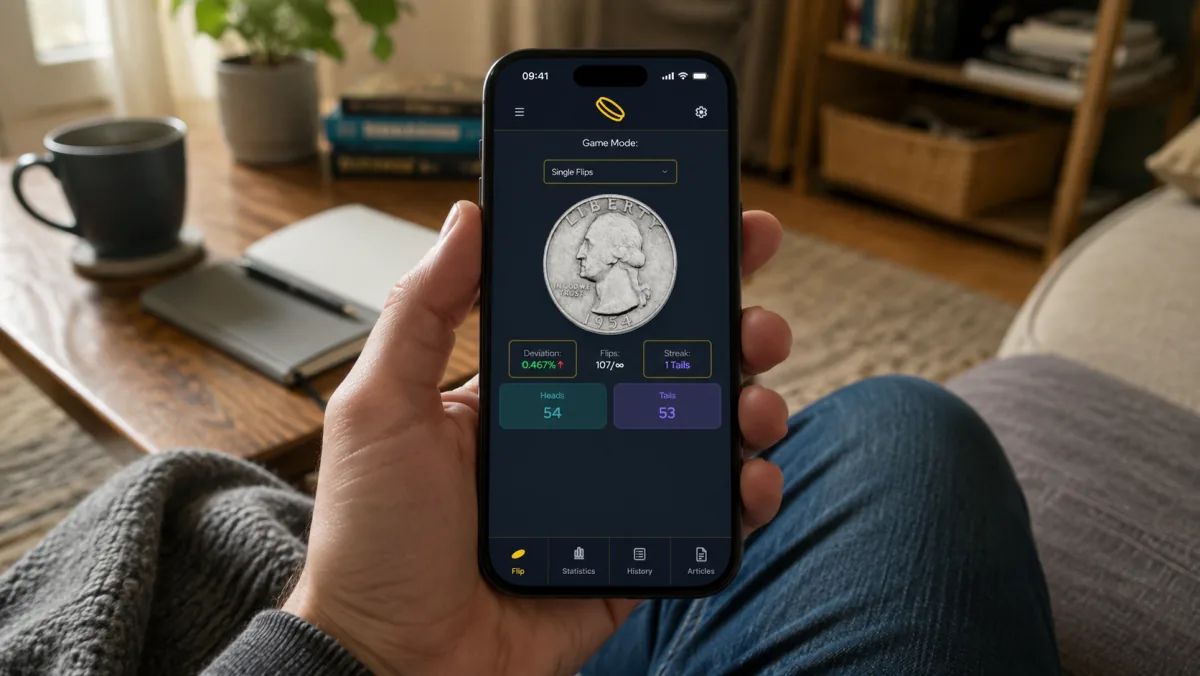
Why install on mobile?
- Faster launch: Open CoinFlipTool directly from your home screen
- App-style shortcut: Keep CoinFlipTool separate from regular browser tabs
- Mobile-friendly layout: Use a touch-friendly interface for quick heads-or-tails decisions
- No app store required: Add CoinFlipTool directly from your browser
Tip: Once added, CoinFlipTool opens from its own home screen icon, so it feels separate from regular browser tabs while still using CoinFlipTool online.
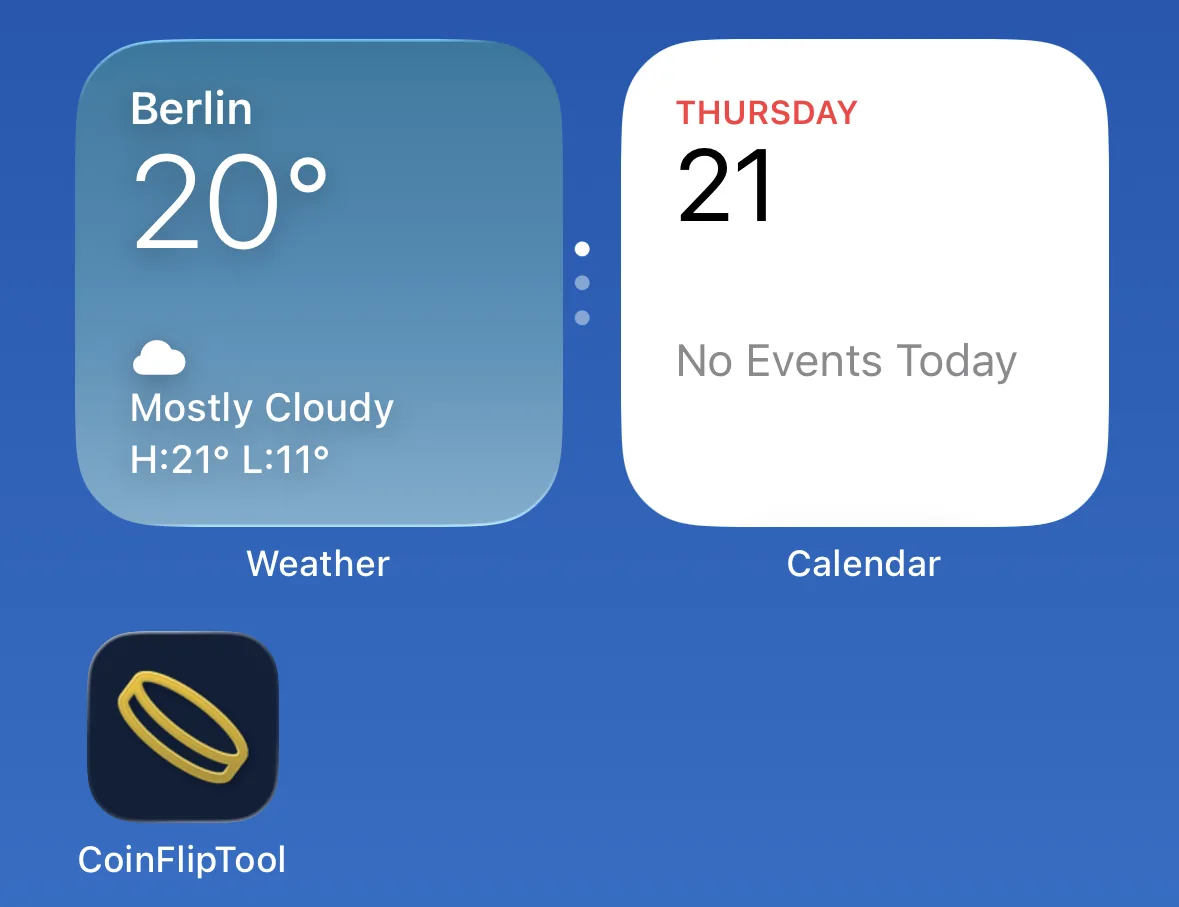
The screenshot above uses iOS as the visual example, but the same idea applies on Android: once added, CoinFlipTool can be launched from your home screen and used online in its mobile-friendly layout.
Mobile-only Flip a Coin Mode
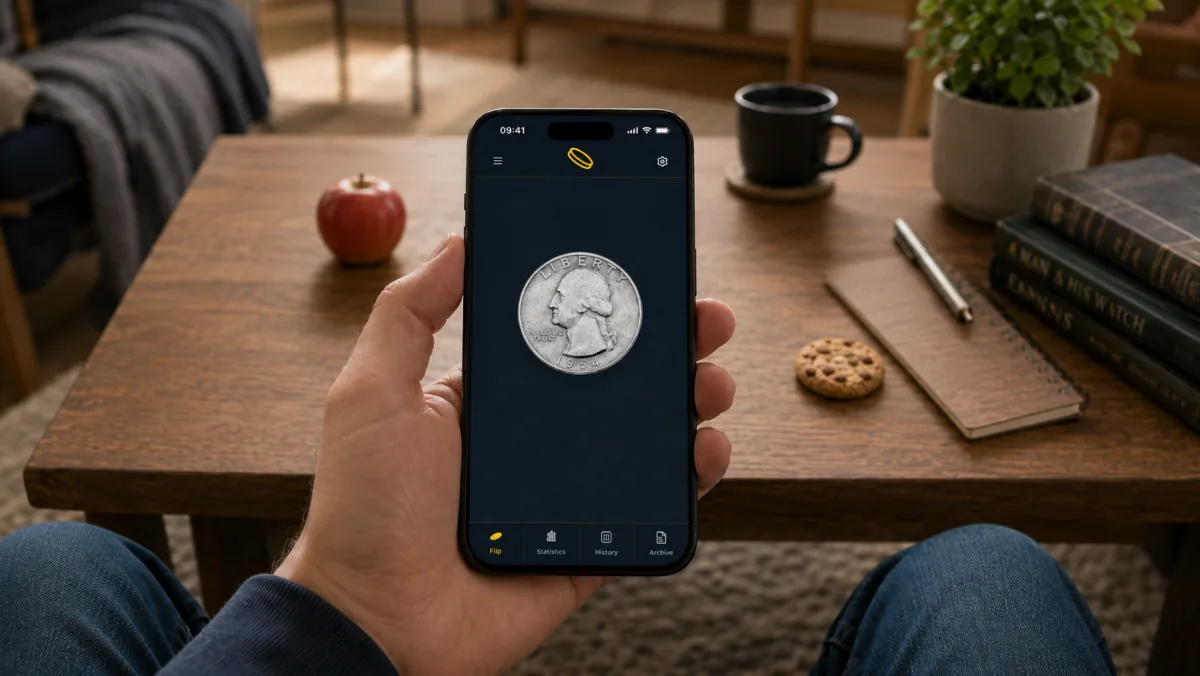
CoinFlipTool includes a mobile-only Flip a Coin Mode for quick heads-or-tails decisions on smaller screens. It works whether you open CoinFlipTool in your mobile browser or from your home screen.
iOS (iPhone/iPad)
Safari (recommended)
- Open Safari and go to coinfliptool.com
- Tap the Share button. On some iPhone layouts, this may appear through the More button; on iPad, it may appear near the address bar
- Tap Add to Home Screen. If you do not see it, scroll down or use Edit Actions to add it
- Customize the name if desired (default: CoinFlipTool)
- If shown, enable Open as Web App
- Tap Add
- Find CoinFlipTool on your home screen with its own icon
Google Chrome
- Open Chrome and go to coinfliptool.com
- Tap the Share icon near the address bar
- Select Add to Home Screen
- Customize the name if desired
- Tap Add to confirm
Firefox
- Open Firefox and go to coinfliptool.com
- Tap the Share icon in the address bar
- Select Add to Home Screen
- Customize the name if desired
- Tap Add to confirm
Android
Google Chrome (recommended)
- Open Chrome and go to coinfliptool.com
- Tap the three dots menu
- Select Add to Home screen
- If Chrome shows Install, tap Install. If it shows Create shortcut, tap that instead
- Follow the on-screen instructions to add CoinFlipTool to your home screen
Samsung Internet
- Open Samsung Internet and go to coinfliptool.com
- If a plus icon appears in the address bar, tap it and choose Home screen
- Otherwise, open the browser menu and choose Add to homescreen or Add page to Home screen
- Customize the name if desired
- Tap Add to confirm
Firefox
- Open Firefox and go to coinfliptool.com
- Tap the three dots menu
- Select Add to Home Screen
- Enter a name for the shortcut if desired
- Tap Add to complete the process
Microsoft Edge
- Open Microsoft Edge and go to coinfliptool.com
- Tap the menu button
- Choose Add to Home Screen, Add to phone, or similar wording depending on your Edge version
- Confirm the name if prompted
- Tap Add to complete the process